

Drop the report. That's the setup.
Open QC from the file and drop the report PDF and the UAD XML together. Add the engagement letter and the purchase contract for a sharper check. Osova shows you what it will read and asks before it uses a QC.
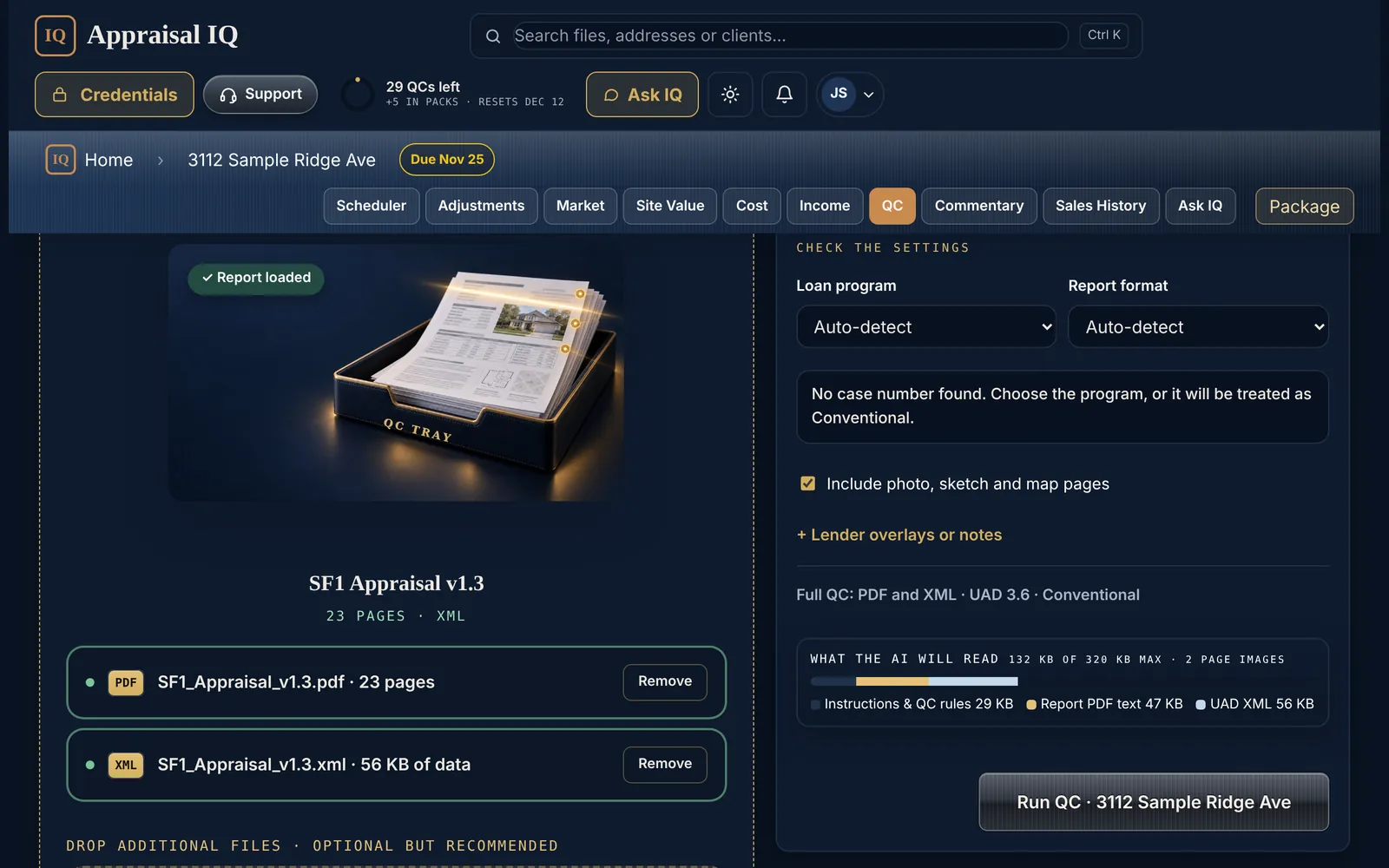
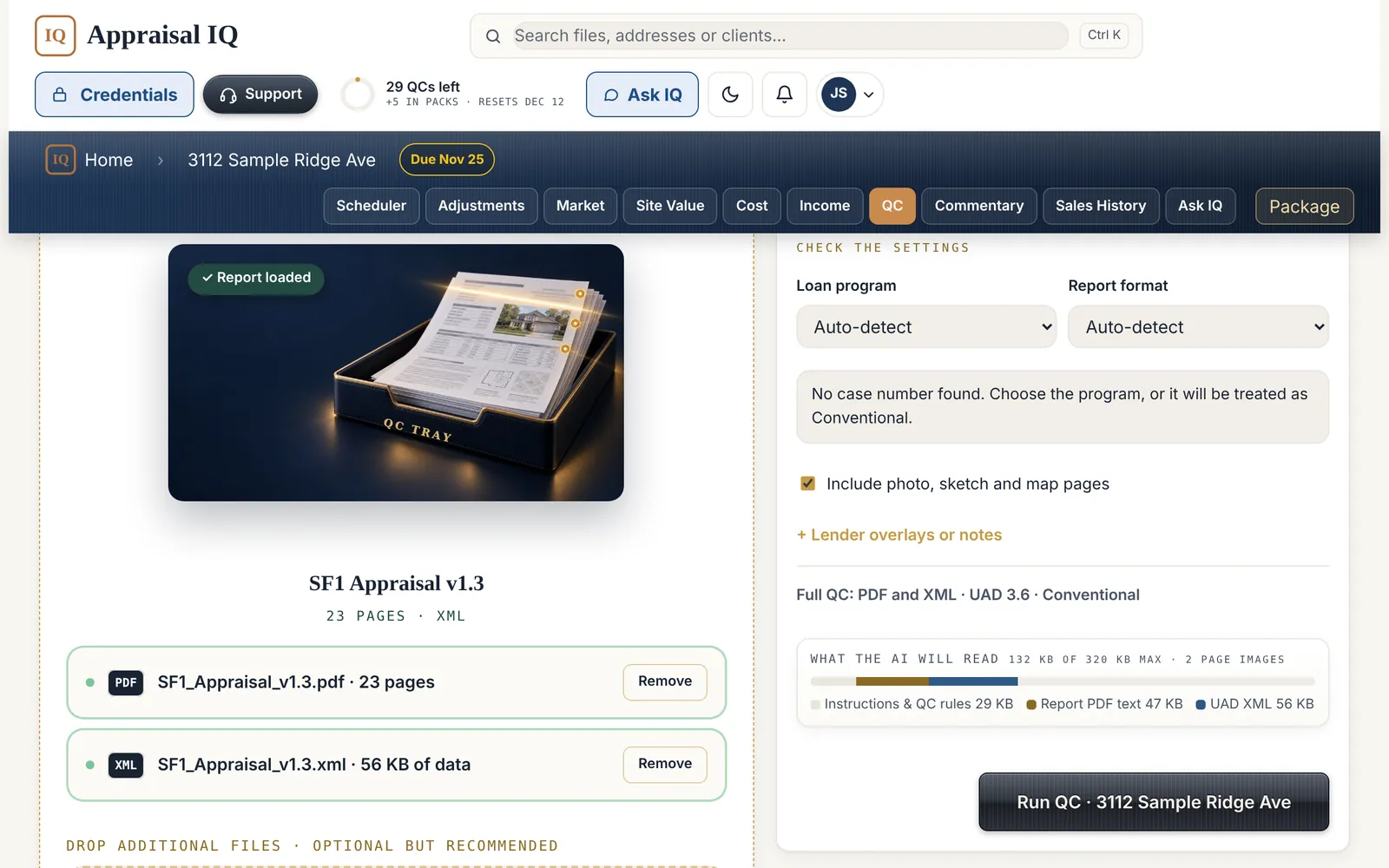
Step 1, screen by screen.
What you do, in order, and what Osova does for you at each point.
Open QC from the file
Click QC on the file's tile, the file bar or the subject page. When you open QC from a file, that file's documents load for you, so there's nothing to find twice. If the file already has a QC, you'll see its runs instead, with the score and who ran each one.
- No file yet? Drop the report on New Appraisal and the file is created for you
- A report that matches a file you have (same street number and name) opens that file
- New members can practice on the Demo file without using a QC
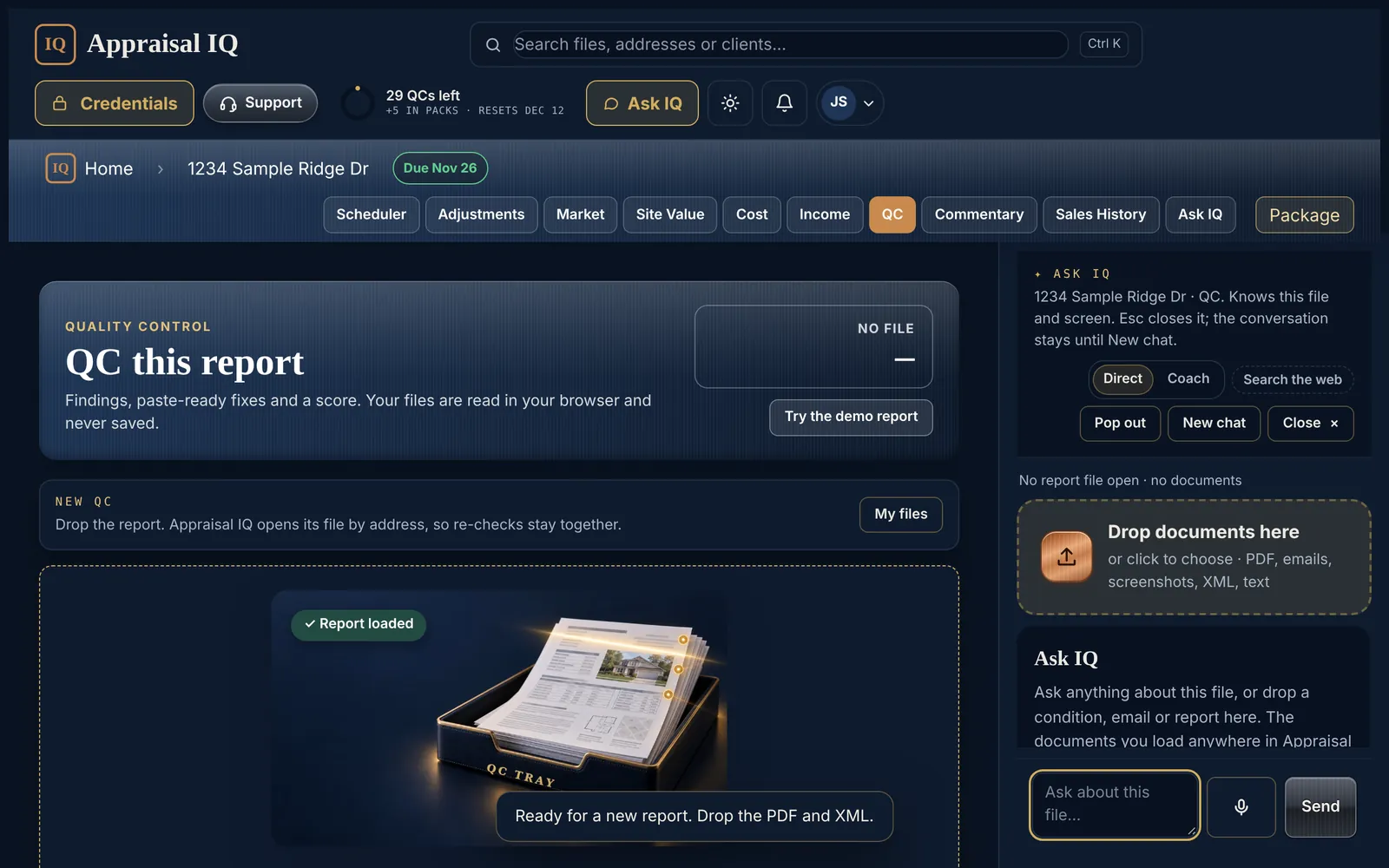
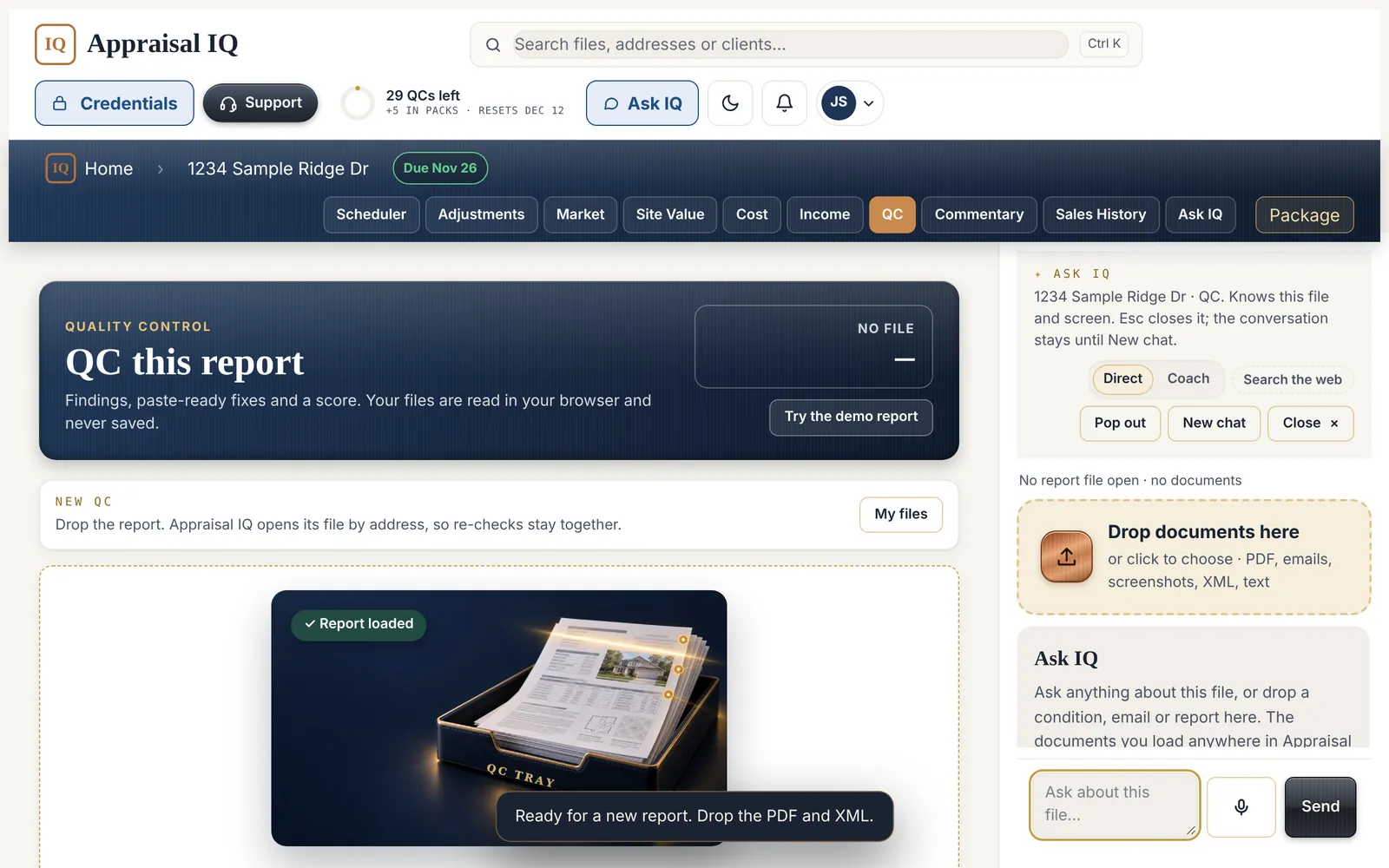
Drop the PDF and the XML together
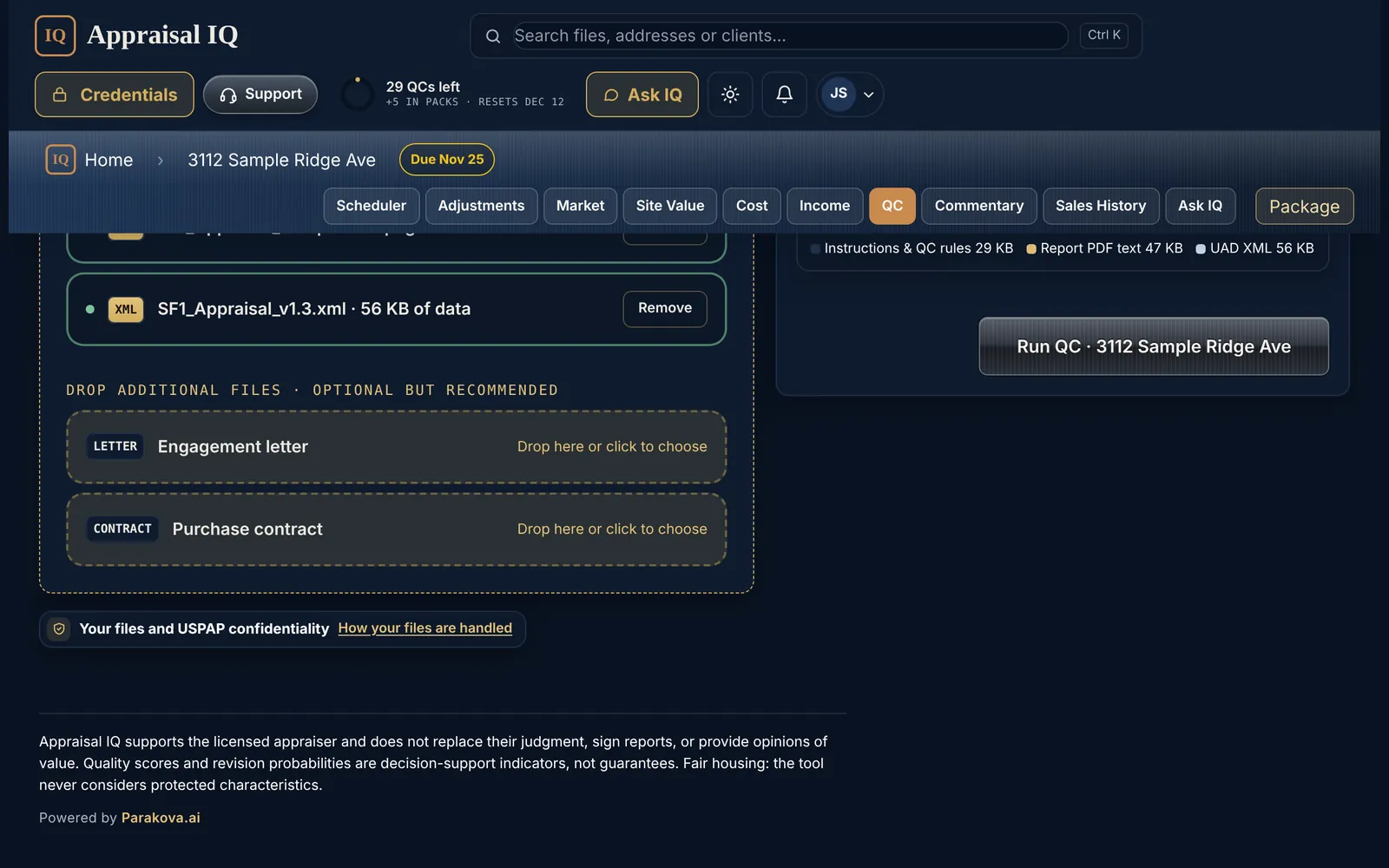
The XML lets QC read every field exactly; the PDF gives it the pages, photos and comments. Drop both at once, or the .env file. Each one shows with its page count or size and a Remove button.
- Report format and loan program are auto-detected
- Include photo, sketch and map pages is on by default
- "What the AI will read" shows exactly what is sent
Add the engagement letter and contract
Drop the engagement letter and purchase contract in the boxes under the report. QC uses them to check that the report matches the order and the contract. Once added, they stay with the file for every later QC and re-check.
- Paste or say any lender overlays in Lender overlays or notes
- FHA and VA add their property requirements
- Then press Run QC: it asks "Run QC · uses 1 QC" with how many you have left
Before you move on.
Straight answers.
Do I need both the PDF and the XML?
Yes, for a full QC. The XML lets QC read every field exactly and the PDF gives it the pages, photos and comments. Together they catch problems neither shows alone, like text in the XML that never prints.
What if I don't have the engagement letter?
QC still runs. Adding the engagement letter and contract lets it check the report against the order and the contract too.
When does it use a QC?
Only when you confirm. Before anything is charged it asks "Run QC · uses 1 QC" with how many you have left.
Try all six steps on your next report.
New plans and pricing arrive January 1. Request early access and we'll set you up. Your reports and work stay on your computer.